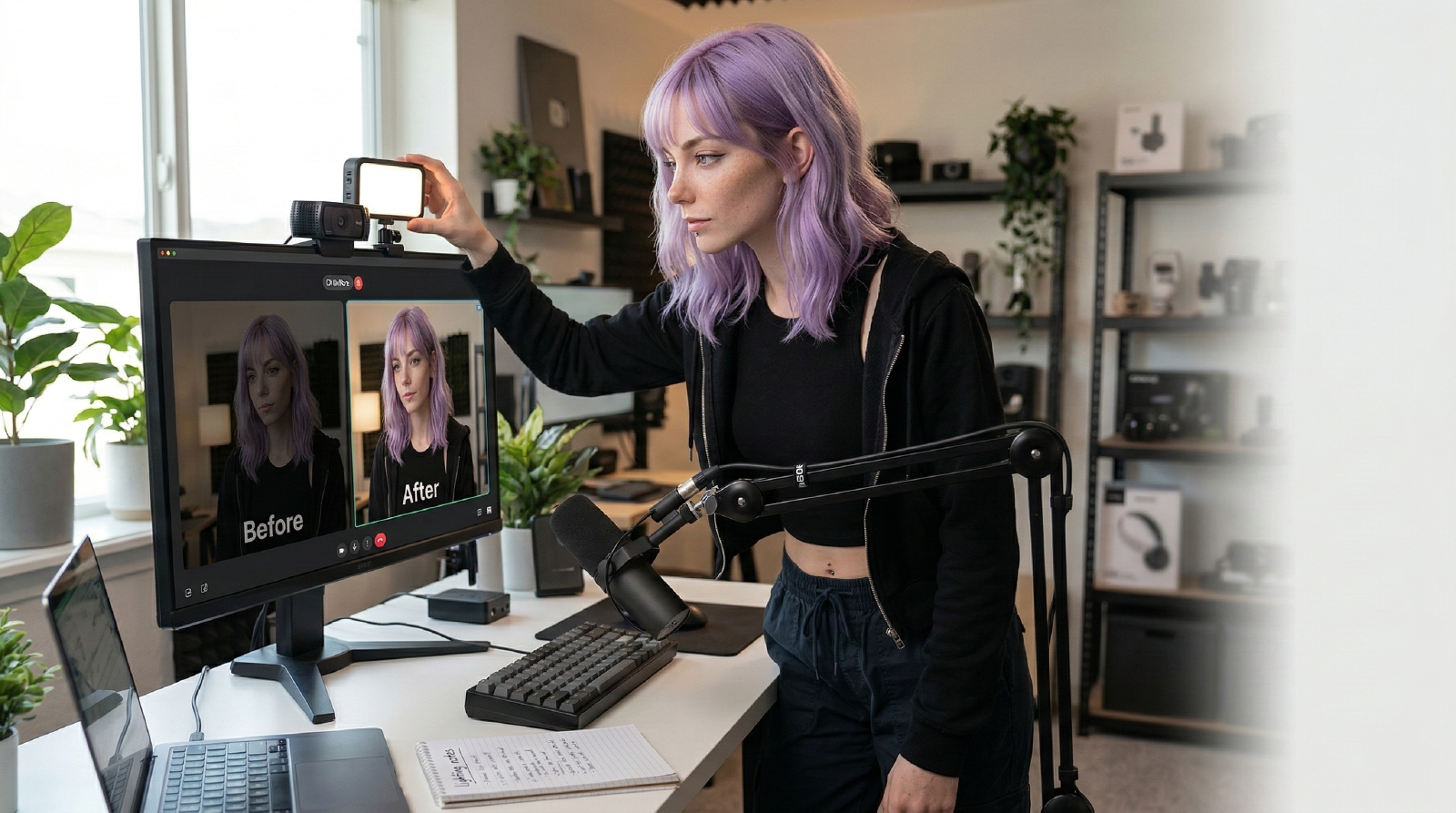
If you have ever opened Zoom, looked at your own camera tile, and immediately thought, “Why do I look so bad on Zoom?” the answer is usually not that you need a new webcam.
Most bad Zoom video comes from a few predictable problems: bad light, bad angle, automatic camera settings, weak network conditions, or a background that is doing too much. If your face is dim, your camera is too low, or a bright window is blowing out the room behind you, even an expensive webcam will still look cheap.
The good news is that the biggest fixes are simple. In most cases, you can make your Zoom camera look better in about 15 minutes with small changes to your desk, your room, and your settings.
Why You Look Bad on Zoom#
The camera on your laptop is usually not flattering, but it is rarely the whole problem. More often, Zoom video looks rough because the camera is fighting the room.
If the room is dark, the camera raises ISO and the image gets grainy. If the background is brighter than your face, the camera exposes for the wrong thing. If the webcam is below eye level, the framing feels awkward. If autofocus and auto white balance are hunting around during the call, you look inconsistent even when you are sitting still.
That is why a simple room fix often improves video quality more than a hardware upgrade.
How to Look Better on Zoom Fast#
If you only fix one thing, fix your light first. A decent camera with good light will usually look better than a great camera in a bad room.
Light#
Put a soft light 45 degrees off your face instead of relying on ceiling lights. Overheads create shadows under your eyes and nose, which makes you look tired even when the camera itself is fine.
If your image looks noisy or muddy, do not solve that by cranking software settings. Give the camera more light instead. More light lets the sensor lower noise naturally, which is why even a modest webcam can look much cleaner with a proper key light.
Angle#
Your camera should be at eye level and centered. If it sits low on the desk and points up at you, the shot gets unflattering fast.
This is one of those changes that people feel immediately. They may not say “the camera angle is better,” but they will read you as more clear, composed, and professional.
Background#
Add a little depth behind you with a lamp, shelf, or plant, and avoid bright windows directly behind your chair.
You do not need a styled set. You just need separation. A background that is calm and slightly layered usually looks better than a blank wall or a room full of visual clutter.
Settings#
If your webcam software gives you manual control, lock exposure and white balance once you have your lighting set. That keeps your image from shifting every time you move your hand or lean forward.
Use 1080p if your camera and connection can handle it, but consistency matters more than max resolution. A steady, well-lit 1080p image beats a jittery “high quality” feed every time.
Network#
If your Zoom camera freezes, softens, or drops in quality halfway through a meeting, it may not be the camera at all. Use Ethernet if you can. If not, get on a clean 5GHz connection and close anything that is pushing large uploads in the background.
Bad network conditions can make a good setup look broken. Stable bandwidth is part of camera quality whether people think about it that way or not.
What Matters Most If You Do Not Want to Buy Anything#
If you are trying to improve Zoom video without buying new gear, start in this order:
- Face a window or move a lamp in front of you.
- Raise the camera to eye level.
- Remove the bright background behind you.
- Lock webcam settings if your software allows it.
- Clean up your network.
That order matters. People waste a lot of time tweaking software sliders before fixing the obvious physical problems in the room.
What Usually Goes Wrong#
The most common mistake is sitting with a bright window behind you and then trying to compensate by turning up the webcam settings. That usually gives you a noisy face, muddy skin tones, and a background that still looks harsh.
The second mistake is camera angle. If the camera is low, people notice it immediately, even if they cannot explain why the shot feels off. Eye level is the move almost every time.
The third mistake is over-tinkering. You do not need a cinematic setup for Zoom. You need even light, a calm background, and settings that stay consistent from call to call.
Best Zoom Camera Setup for a Home Office#
For most home offices, the best Zoom setup is not complicated:
- one light near the front of your desk
- one camera at eye level
- one background element with a little depth
- locked camera settings
- reliable network
That is enough to make you look sharper, more awake, and easier to read on screen. You do not need to turn your desk into a YouTube studio unless that is actually your job.
The 15-Minute Result#
You are not trying to build a studio here. You are trying to look clear, awake, and easy to trust on camera.
That usually means brighter face, less grain, cleaner framing, and a background that does not fight for attention. Once those pieces are handled, most people can stop obsessing over webcam quality and get on with the meeting.
Related Ask Mira
- What Light Works Best for Zoom Without Blinding Me?
Look good on camera without frying your eyes. Mira picks a soft, compact Zoom lighting setup.
- What Webcam Lighting Works Best When You Wear Glasses?
Glasses glare ruins your camera setup fast. Mira fixes the light before you blame the webcam.
- Should I Upgrade My Streaming Webcam?
Want a crisp, low-noise webcam setup without going full DSLR? Mira picks the sweet spot.
Related Reviews
- Elgato Facecam MK.2
A strong fixed-shot webcam for streamers and creators who already have decent lighting and want cleaner control than the average monitor-top camera offers.
- Logitech Brio 4K
A dependable 4K webcam for remote workers, presenters, and telehealth setups that need strong exposure handling without turning the desk into a camera project.
Related Loadouts
- Remote Room Ready
Look and sound credible on every call while keeping your desk compact.
Related Comparisons
- Best Webcams for Remote Work and YouTube (2026)
A practical webcam shortlist for meetings and creator workflows, with tradeoffs that matter more than headline resolution.
Referenced In Ask Mira
- Can I Use a Webcam With My Laptop Lid Closed?
Need a good webcam while your laptop is closed and docked? Mira has a clean, simple setup.
Referenced In Guides
- Makeup for Zoom: Fix the Light First, Then the Color
Makeup washes out on a webcam for reasons that start with the room. Fix the light and camera first, then add color where video callers say it survives.
Referenced In Reviews
- Insta360 Link 2 Pro
A premium 4K PTZ webcam for creators and presenters who want stronger low-light performance, tracking, and more control than a fixed desk camera usually offers.
- OBSBOT Tail Air
A compact 4K PTZ camera for creators who need tracking, remote control, and more flexible streaming angles than a standard desk webcam can offer.
- Razer Kiyo V2
A creator-friendly webcam that leans into low-light cleanup, auto-framing, and a wider-angle view for desks that are not perfectly lit.
Referenced In Comparisons
- Best Key Lights for Zoom, Streams, and YouTube (2026)
A practical key-light shortlist for creators and remote workers who need better video without blinding desk setups.